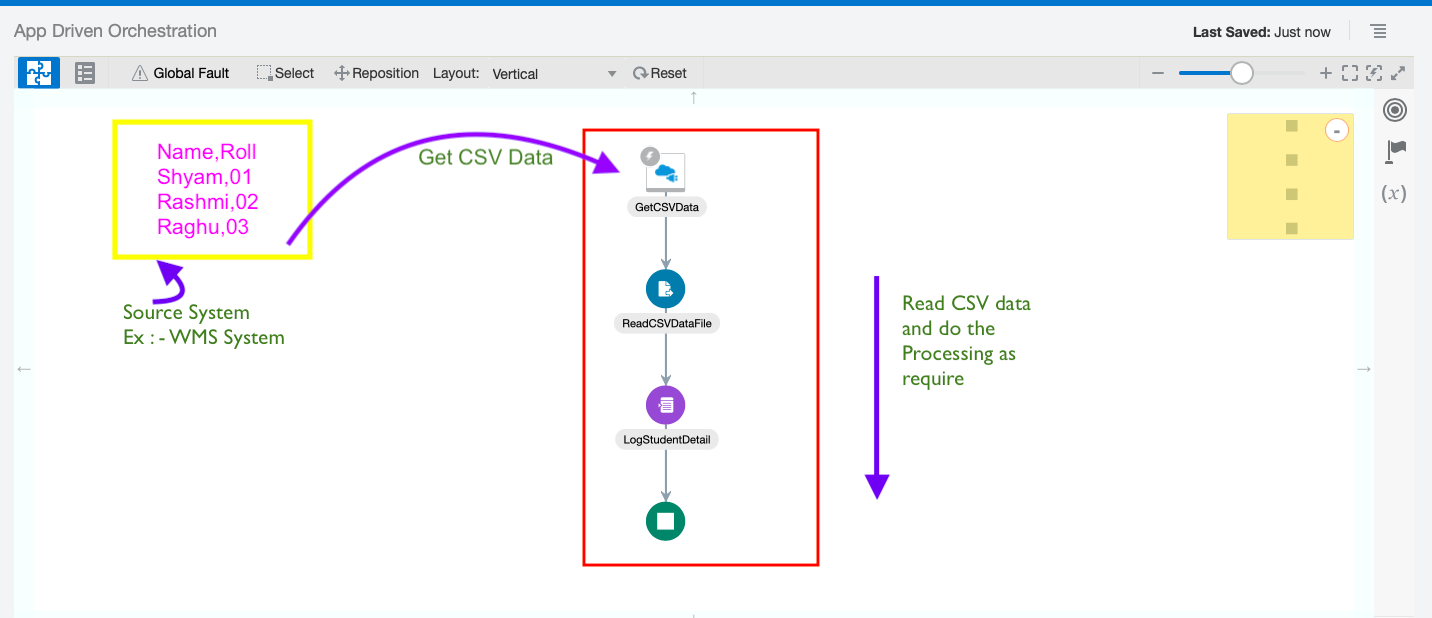
 |
| Click to Zoom Out |
– Advertisement –


– Advertisement –
Step 2 : Add Rest Trigger Connection type. You can follow this blog to create Rest Trigger Connection.


- Enter any meaningful name and then click Next

- configure this window as suggested below :
- *what is this endpoint’s relative Resource URI ? : /csvdata (you can enter any meaningful URI)
- *What action do you want to perform on this endpoint : POST
- Select configure a request payload for the response and then click Next

- Now configure the Request Payload as suggested below
- Select the request payload format : Binary
- What is the media-type of Response Body ? (Content Type Header) : Select Other Media Type
- ︖ Media Type. : Enter text/plain

- Rest Endpoint configuration completed. Click Done

– Advertisement –
Step 3 : Now in this step lets configure one Stage File Action to read the received csv file data.
- Add Stage File activity

- Enter any meaning full name and click Next

- Configure the stage File Action parameter as suggested below
- *Choose the Stage File Operation : Read Entire File
- Configure File Reference : Select Yes
- *Specify the File Reference : Click Edit (Pencil icon) and then drag and drop *streamRefernece into Expression box (as shown in below image). click save and and click Exit Expression Builder


- Select Sample delimited document (e.g. CSV) to define the structure of the file contents. Then click Next

- Define the structure of the file contents by selecting below Delimitated Sample File. After selecting file configure the other options as suggested below :
- Enter the record name : Student (you can give any meaning ful name)
- Enter the Record set name : StudentsDetail (You can any meaningful name )
- Select the Field Delimiter : Comma(,)
- Optionally Enclosed by : “
- Terminated By : ${eol}
Click Next

- Stage File Action configuration completed. Click Done.


– Advertisement –
Step 4 :Now lets add one Logger to log the received CSV data.
Logger ? : It Enables you to add log messages to the activity stream and diagnostic logs.
- Search for Logger action and add it in flow

- Enter any meaningful name and then click Create

- Configure Logger option will get open , Select Log : Always and then click edit (pencil icon ) to map *Logger Message

- Drag and drop *StudentDetail tag from left hand side(Source side ) inside Epression box and then click validate and close

- Click Validate and close

– Advertisement –

- Drag and Drop *streamReference in Primary Tracking Field.You can select another also as per your requirement.
Click Save

Assigning Business Identifiers for Tracking Fields ? : Business identifiers enable you to track payload fields in messages during runtime.You must assign business identifiers before you can activate an integration.
- Integration is ready to test. Save the integration and Activate it.


- Click on Run button

- Click Test

- Pass the below sample CSV data and click Test
Name,Roll
Shyam,01
Rashmi,02
Raghu,03
Rajesh,04Satya,05

- You can see the input csv data in Log (as shown in below image)

- If you want to see the CSV data in XML check the Read Response Payload.

Completed. This way we can configure REST Trigger Endpoint to receive CSV data from Source System(Like WMS)

Leave a Reply