In this article we will see the steps to configure HCM cloud adapter in an Integration to Upload files to the Universal Content Management (UCM) or simply ‘content server’ in HCM Cloud.
PART 1 : Create HCM Adapter Connection :

- Configure the connection using HCM Cloud Host name & Username Password Token Security policy (as shown in below image )

PART 2 : HCM Adapter Configuration :
Now Lets see the steps to configure the HCM adapter & it’s mappings in an Integration flow to upload file to UCM Server in HCM cloud.

- Search for the connection which has been created above ‘Part 1′. Give any meaningful name (ex :- UploadFileToUCM ) and then click Next.

- Select ‘Send File to HCM Cloud’ and click Next
Knowledge : 👀
Send File to HCM Cloud : Please note this will only upload the files and not perform any additional operation on the file like Import Bulk Data using HDL option..

- Now select the File Upload Parameters as suggested below and click Next :
- *Security Group : FAFusionImportExport
- *Doc Account : hcm$/dataloader$/import$

- Adapter Configuration Completed. Click Done

- Now open the Mapper to complete the mappings. Click on edit icon 🖉 :

- Complete the Mappings as given below :
- Doc Title → Pass File Name (with this name file will get generated in UCM server)
- Security Group → enter “FAFusionImportExport”
- Doc Account → enter “hcm$/dataloader$/import$”
- File Reference → Map the File reference (file which you want to upload to UCM server)

That’s it. Configuration to upload file in UCM server in HCM cloud completed. When you run this configuration in any Integration you will get Process Id in response, which you can use to search uploaded file in UCM server in HCM cloud.
Steps to check File uploaded to the UCM Server in HCM Cloud :
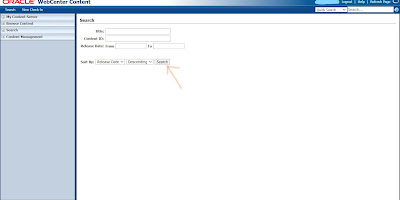
- Login to UCM Content server , UCM URL : https://<saas domain >/cs (example : https://eiiv-dev14.fa.us6.oraclecloud.com/cs )
- Click on search button. You can see the file recently got uploaded or you can also search using the Process Id which you received as response in above Integration.
Thank You ! Please do let me know in the comment section if you have any query.

What if uploading the file to UCM fails or takes time to give the response when loading the larger files?
How to get the status of the UCM file upload whether it is successful or not?
I think instantly you will get the PROCESS ID and to Know the STATUS OF UPLOAD, you need to trigger one separate REST webservice (not sure which web service) BY PASSING UPLOAD PROCESS ID AS AN INPUT……