- HCM Atom Feeds offer a real time mechanism to subscribe to changes in the application
- Atom feeds enable you to track changes made to feed-enabled resources in Oracle Global Human Resources Cloud
- For any updates of interest to downstream applications such as new hires, terminations, employee transfers, and promotions, Oracle Global Human Resources Cloud publishes Atom feeds.
- Oracle Global Human Resources Cloud currently supports creation of Atom feeds for the employees and work structures resources in the following scenarios:
- When an employee is hired, updated, or terminated
- When an assignment is created, updated, or end dated
- When any of the following work structures is created, updated, or end dated.
- Grades
- Jobs
- Locations
- Organizations
- Positions
– Advertisement –
HCM Atom Feeds : Can use this feature only as an Schedule Integration (invoke),not as an App Driven Integration (Trigger).


– Advertisement –

- Enter any meaningful name for the endpoint and click Next.

- Select Subscribe to Updates (via ATOM feed ). Click Next

- Select ‘Employee Update‘ Atom feed and leave max entries to process as 10 and then click Next.

- HCM endpoint configuration is completed. Click Done.

– Advertisement –
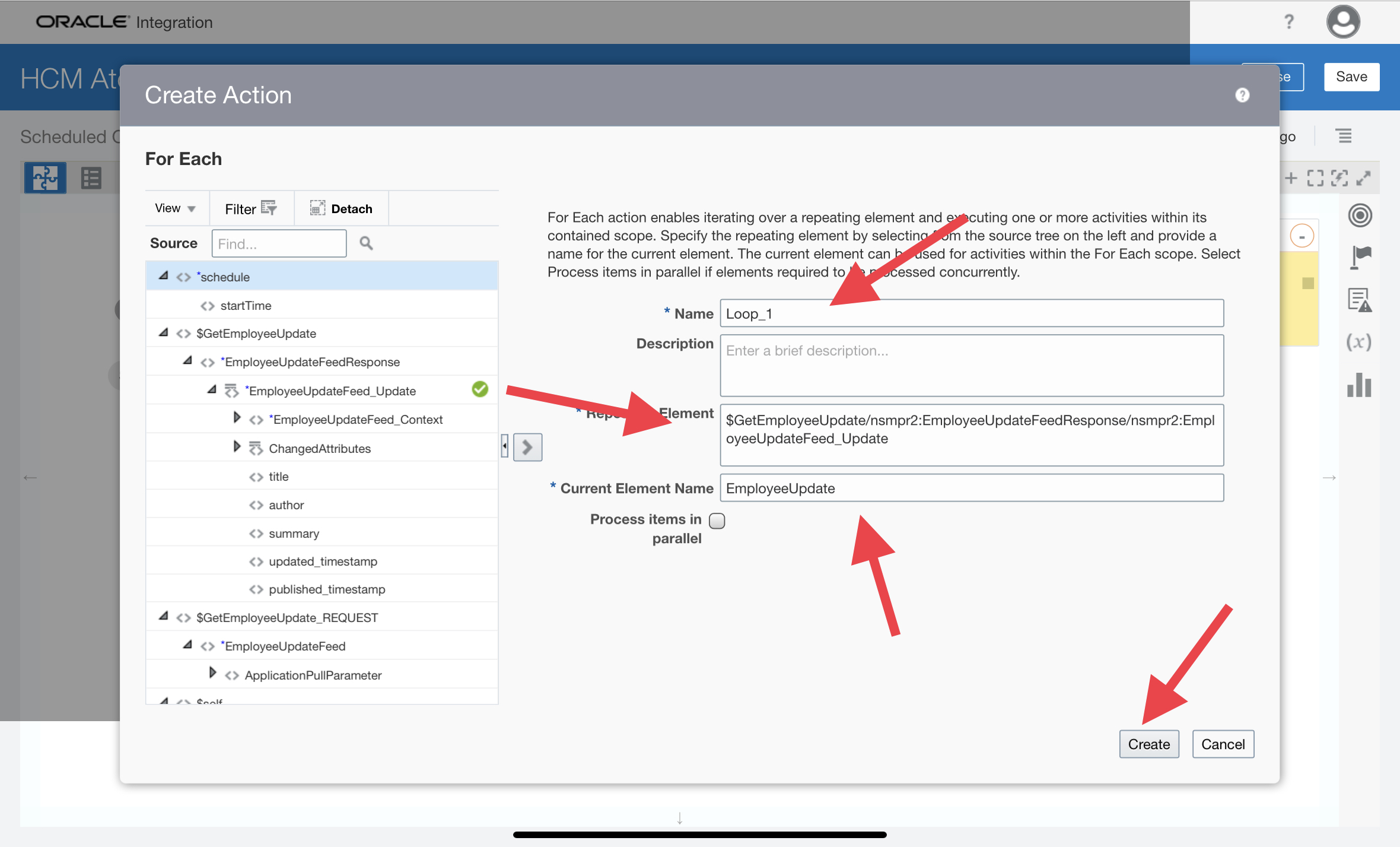
- Search for the For Each action and select it.

- Enter the below details :
- Name : enter any meaningful name
- Repeating Elements : drag and drop repeating parent element from the Employee Update Response (take reference from below image)
- Current Element Name : enter any meaningful name and then click Create

Step 4 : Now we need to add one child For Each inside the above configured For Each action. So that we can iterate over the Current Element Name (configured in above for each action)
- Search for the For Each action and add it inside above configured For Each action

- Just like above For Each action, configured the below details.
- Name : enter any meaningful name
- Repeating Elements : drag and drop the Current Element Name which we have configured in above For Each Action (take reference from below image)
- Current Element Name : enter any meaningful name and then click Create

– Advertisement –
- Search for the FTP connection and select it.

- Enter any meaningful name for the endpoint and click Next

- Configure the below operations :
- *Select Operation : Write File
- *Select a Transfer mode : Binary
- *Output Directory : here you need to provide the FTP directory path where you want to write the file
- *File Name Pattern : here you need to provide the name with which file will get generated in FTP (ex : EmployeeUpdate%SEQ%.csv) and then click Next

- Select Sample Delimited document (e.g. csv) to define the content of the file and click Next

- Now in this configuration wizard window we need to provide the details to create the Schema from a sample CSV file. Copy the below line and save it as .csv file in your computer (ex: UpdateEmployee.csv)
PersonId,PersonNumber,Attribute,New,Old
- Lets Configure schema using the above saved .csv file. Browse the file and enter the other details as shown in below image and then click Next

- Configuration of FTP is done. Click Done.

– Advertisement –
- Click on Edit icon 🖉of the Scheduler

- Declare one variable and pass sample timestamp value (take reference from below image).

- In the request mapper between the schedule and the Oracle HCM Cloud Adapter, map the above scheduled parameter (timestamp value) to Updated-min. Click Validate and Close the mapper.
The Oracle HCM Cloud Adapter sends the updated-min query parameter to the Atom server when requesting a feed. The Atom server returns a feed with updated entries occurring after newer updates to the timestamp value. This enables new updates to be processed every time and prevents the same update from being processed multiple times.


– Advertisement –


- Enter any meaningful name and click create.

- Select the scheduled parameters variable from the drop down list and then click on edit icon 🖉

- Drag and drop updated timestamp element from then employee update response (as shown in below image). Click validate and close.

– Advertisement –


- Activate and Submit the Integration. You can enter New Value ( timestamp ) for the schedule parameter or just submit the flow with the default value that is already present.

- Open your respective Output FTP directory which you have passed above in Step 5. You can see the file got generated in the Directory with the details of the changed Attributes of the employees.

- Open any file, you can see the Details (like Employee Id, Employee Number, Attributes Name for which value get updated and its new value and old value as well )


A very good post.
Thank You Caden 🙂