
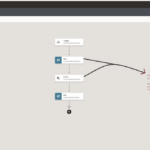

Please access the previous blog to check first part i.e Single Integration Migration steps. In this article we will see the steps of Multiple Integration Migration or Package Migration : If your requirement is to migration multiple integration in one go then you have to put all the required migration in one package. You can
You can do migration of Integrations from one OIC Instance to another in two different ways : 1. Single Integration Migration : You just have to Export the Integration from current Instance and Import it to new OIC Instance. 2. Multiple Integration Migration : Now suppose you want to migrate multiple integration in single go then
In this article i have mentioned the testing steps for the Throw New Fault Hands-on Integration which i have created in the previous post. Activate the integration make sure to ✓ Enable the Tracing Run the integration by clicking play button CASE 1 : When Input Number-1 > Number-2 Pass Inputs, Number-1 =100 & Number-2 =
Throw New Fault : 👉 You can create and throw your own faults in an integration with a Throw New Fault action.You can use this inside for-each action, switch action etc. Using this action item you can Validate the input data also (check below hands-on practice). While configuring this action in an integration, you have to
Knowledge : 👀 Connection ? : A connection is based on an adapter. For example, to create a connection to a specific Logistic Cloud application instance, you must select the Logistic adapter and then specify the WSDL URL, security Policy and security credentials to connect to it. In this post I have mention the steps to
This post published in February 2021 Edition of Oracle PaaS Partner Community Newsletter

– Advertisement –
This post published in February 2021 Edition of Oracle PaaS Partner Community Newsletter
In the previous post we have seen the PART 1 of BI Report Invocation. If you don’t have seen that requesting you to first check that out by clicking here.
In this article we will develop the left part (PART 2) i.e. convert the base64 encoded run report operation response and then read it in proper XML format using stage activity.

– Advertisement –
Integration Properties are user defined properties available for usage by activities (e.g. Notification , Log) as read-only data with in the flow. Read only data 👉 because the integration property value can’t be updated within the integration. For example, you cannot update the integration property in an assign action. You can update integration properties value
In this article I have tried to explain how we can use Global Variable and Data Stitch Action in an Integration. About Global Variable : You can create complex and simple type global variables that are available for usage throughout an orchestrated integration (for example, when building an expression in the Expression Builder of an assign
In this blog I have described the steps to configure the OTM connection in Oracle Integration Cloud Instance. STEPS OVERVIEW : – Step 1 : Configure OTM Connection using Logistics adapter. Step 2 : Upload OTM SSL Certificates. Prerequisite : Requesting you to follow this blog & download the OTM SSL certificates files. We need it in